
Download Snagit – Powerful Screen‑Capture, Video Recording & GIF Maker
Overview of Snagit
Snagit, developed by TechSmith Corporation, is a premium screen‑capture and recording utility that transforms the ordinary Print Screen key into a full‑featured productivity powerhouse. Whether you need a quick screenshot, a step‑by‑step tutorial video, or an animated GIF to illustrate a workflow, Snagit delivers a seamless, all‑in‑one experience. The software combines image capture, video recording, and an intuitive editor that lets you annotate, trim, add callouts, and apply effects in real time.
Its cloud‑library integration keeps your captures synchronized across Windows, macOS, Android, and iOS devices, so you can start a project on a desktop and finish it on a tablet without missing a beat. Snagit offers a 15‑day free trial that unlocks every feature, after which users can purchase a lifetime license with a year of maintenance—eliminating recurring subscription fees. In short, Snagit is positioned as the go‑to tool for educators, developers, marketers, and anyone who wants to create polished visual content quickly and securely.
Key Features That Set Snagit Apart
- All‑in‑One Capture Modes: Switch effortlessly between Image, Video, and All‑in‑One tabs to capture stills, screen recordings, or picture‑in‑picture (PiP) videos.
- Panoramic Scrolling Capture: Capture entire web pages or long documents in a single, scroll‑free image.
- Text Extraction (OCR): Grab selectable text from any screenshot and paste it directly into documents or spreadsheets.
- Animated GIF Creation: Turn short video clips into lightweight GIFs for quick sharing on social media or chat platforms.
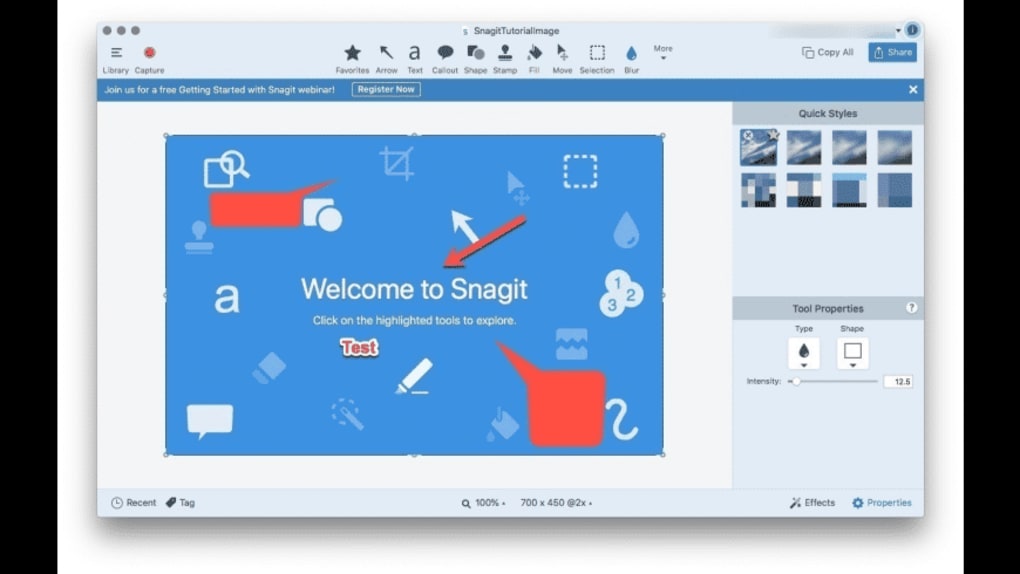
- Robust Editing Suite: Add arrows, shapes, callouts, blur sensitive information, and apply theme‑based styling in the built‑in editor.
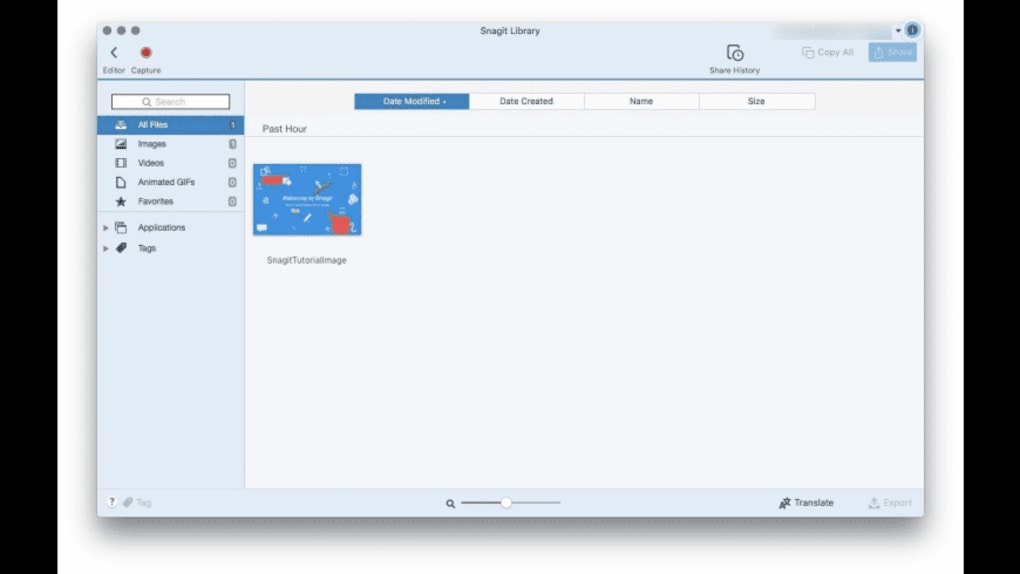
- Cloud Library & Sync: Store captures in TechSmith’s secure cloud, access them from any device, and collaborate with teammates via shared links.
- Multiple Export Formats: Export to MP4, GIF, PNG, JPEG, BMP, ICO, and more, ensuring compatibility with any workflow.
- Shortcut Customization: Configure hotkeys for instant capture, trimming, and publishing without leaving your current application.
- One‑Year Maintenance: Free updates, new features, and technical support for the first year after purchase.
Beyond the list above, Snagit’s UI is built around simplicity. The left‑hand navigation panel groups related tools, while the central preview pane offers a live view of your capture before you commit to saving. The editor’s drag‑and‑drop interface means you can place annotations exactly where you need them, making the creation of professional‑looking guides, training manuals, and bug reports faster than ever. For teams, the ability to share a cloud‑hosted library eliminates the need for email attachments, keeping version control tight and ensuring that every stakeholder sees the latest visual assets.
Installation, Usage Instructions & System Compatibility
Step‑by‑Step Installation
- Visit the official TechSmith Snagit page and click the Download Free Trial button.
- Run the installer (SnagitSetup.exe for Windows or Snagit.pkg for macOS) and follow the on‑screen wizard.
- When prompted, sign in with a TechSmith account or create a new one—this step is required for license activation and cloud sync.
- Choose the default installation folder or accept the recommended path, then click Install.
- After installation, launch Snagit; the first run will display a short tutorial overlay that highlights the main capture hotkeys.
How to Capture
Snagit’s core workflow revolves around the Print Screen key (or the custom hotkey you set). Press the key to summon a crosshair cursor, then drag to select the region you want to capture. For scrolling captures, select the “Panorama” option; Snagit will automatically scroll and stitch the image for you. Video capture works similarly—choose the Video tab, hit the Record button, and select either full‑screen, window, or custom region. The picture‑in‑picture mode lets you overlay webcam footage onto your screen recording, perfect for webinars or product demos.
Once the capture is taken, the editor opens automatically. Here you can add annotations, trim video clips, insert step numbers, or apply pre‑built templates. When you’re satisfied, click Save, Copy to Clipboard, or Share to push the file to email, Microsoft Teams, Slack, or directly to the Snagit Cloud.
Operating System Compatibility
Snagit supports the following platforms:
- Windows 10, Windows 11 (64‑bit)
- macOS 12 Monterey and later (64‑bit)
- iOS 13+ (Snagit Capture app for mobile)
- Android 8.0+ (Snagit Capture app for mobile)
The desktop application requires at least 4 GB RAM and 200 MB of free disk space, while the mobile app runs smoothly on most modern smartphones. Because Snagit stores assets in the cloud, you can start a capture on a Windows PC, edit on a Mac, and publish from an iPad without any file‑format headaches.
Pros, Cons, Frequently Asked Questions & Final Thoughts
Pros
- All‑in‑one solution for screenshots, video, and GIFs.
- Intuitive editor with powerful annotation tools.
- Panoramic scrolling capture saves time on long webpages.
- Cloud library keeps files synced across Windows, macOS, iOS, and Android.
- One‑time purchase eliminates recurring subscription costs.
- 15‑day free trial provides full access to every feature.
Cons
- Higher upfront price compared to free alternatives like Greenshot.
- No native ability to change default export format globally (must be set per file).
- Learning curve for advanced video editing features.
Frequently Asked Questions
Is Snagit free after the trial?
No. Snagit offers a 15‑day fully‑featured trial. After the trial you must purchase a lifetime license, which includes one year of updates and support.
Can I capture scrolling windows on macOS?
Yes. The panoramic scrolling capture works on both Windows and macOS, allowing you to grab entire webpages or long documents in a single image.
Does Snagit support video editing?
Snagit includes basic video trimming, trimming out silent sections, and the ability to add callouts or captions. For advanced editing you would need a dedicated video editor, but Snagit covers most tutorial‑creation needs.
How secure is the Snagit Cloud library?
TechSmith uses TLS encryption for data in transit and AES‑256 encryption at rest. Access is protected by your TechSmith account credentials, and you can set share links to be view‑only or editable.
Can I use Snagit on multiple devices with one license?
Yes. A single lifetime license can be activated on up to two devices simultaneously, making it ideal for a desktop‑laptop combination.
Conclusion – Should You Download Snagit?
Snagit delivers a polished, secure, and highly productive environment for anyone who regularly creates visual documentation. Its combination of screenshot, video, and GIF capabilities, paired with a cloud‑first workflow, means you can replace multiple niche tools with a single, well‑supported application. While the upfront cost is higher than free utilities, the one‑time purchase eliminates recurring fees and the included maintenance year ensures you stay up‑to‑date. If you value speed, consistency, and a professional look for your guides, tutorials, or marketing assets, Snagit is a worthwhile investment. Download the free trial today, explore the full feature set, and decide if the productivity boost justifies the purchase.
Download Snagit now and start creating clearer, more engaging content instantly.







